How to Share your Laptop Internet Connection

Prior to the introduction of the android devices and other smartphones that now make tethering (sharing internet connectivity) among various devices easier, it was difficult to sharing internet connections between devices at least, for laymen. Thanks to Android OS, the tethering functionality was first seen on it, at least in Nigeria.

Now, another thought that might come to mind is; "Can I Share My PC (Laptop or Desktop Internet Connection with Other Devices?"

YES. It is very possible to share your laptop or desktop internet connectivity with other devices around even, with outdated devices that do not have WiFi.
For example:
You work in an office where internet connection is restricted to ONLY a few devices and you want your iPad, Tab or smartphones to enjoy flawless internet connectivity while at work; you can simply use this method to share the internet connection and bypass the restriction.
Other than for the reason stated above, this method can also be used to connect multiple devices. Laptops, Desktops, iPad, iPhones, Android smartphones, BlackBerry smartphones among others can all be connected to a single source at the same speed as if it were one.

Turning Laptop to A Router, How is that Possible?

Your laptop cannot ordinarily do that much. To turn a laptop or desktop to a router, you only need to install Connectify on the laptop so that you may be able to share your laptop internet connection with any devices or gadgets around.

What Are the Requirements?
There is no special requirements for connectify to work perfectly on your PC. You only have to have a PC running Windows 7 or above.
However, it should be noted that Connectify works better on Windows 7 (SP1). Works well on any version of Windows 8+. Also, you should have Microsoft NetframeWork 4+ installed on your PC to use connectify.

How to Setup Connectify On My Laptop?

1- First, download Connectify from the link here.
2- Install Microsoft NetframeWork on your PC. If you can't do that, just proceed to the stage 3 below.
3- Double-click the Connectify setup file you downloaded from link above to install it.

Connectify would scan your PC to see if you have Microsoft NetframeWork 4.5 installed otherwise, it would attempt to download and install it with a pop notification.
Proceed with the installation by following the instructions until it completes.
NOTE:
Internet connection is needed to do that.

How Do I Share My Laptop Internet Connection Using Connectify?

It's easy, once you have installed Connectify on your PC, simply follow the step by step guides below.

1- Connect your laptop to a WiFi.
2- Lunch Connectify from your laptop's home screen or wherever you have created/moved the connectify shortcut.
3- Select the option you want from the Connectify startup screen as seen on the image below.

4- Click Start Hotspot and by that, you are done.

You can now use your other devices to search for your laptops wireless and connect to it straight away.
NOTE:
If you wish, you may decide to secure the wireless with a password to prevent unauthorized access to it.

I Already Have My Phones, Why Do I Need Connectify?

1- To Avoid Overcharges for Costly Connections
You might end up in cafe to do certain things on your laptop and at the same time, you might need to connect your phone(s) as well, if you have connectify on your PC; you can simply fire it up and share the laptop's internet connection with your phone(s) instead of paying for another extra charges for your phone(s). Or, maybe you're stuck at a hotel that charges for Internet per-device. With Connectify Hotspot, you can join the WiFi with your laptop, start a hotspot, and get all of your devices online for the price of one.

2- WiFi Repeater Mode Boosts your Range Instantly – MAX
Another advertange of using Connectify is the WiFi range expansion. You can extend the range of your existing WiFi network if you are subscribed to the connectify Hotspot MAX.

3- Bypass Connectivity Restrictions
Maybe you find yourself in a company that restricts internet access, a school cafe that reduces bandwith or even; a cafe that restricts usage, Connectify can help you break off all the rules and protocols.

Get 4GB of MTN Data for Just N1,500

Day by day, more smartphones are introduced into the mobile telephony market. The more they come, the more needs we have for data for browsing the internet, uploading and downloading of files and to doing all sorts of things that make us fully utilize the potential of these smartphones.

However, the rate at which these smartphones consume the data is so alarming that some people cry out loud for it while others laugh out loud. Well, whichever category you belong, it's your choice to decide.

Now, You Can Get 4GB of MTN Data for Just N1,500

This publication has two purposes which are;
1- For those who wish to buy cheap MTN Data.
2- For those who wish to learn how to getting free MTN Data

1- How to Get MTN 4GB Preloaded On An MTN SIM

At the moment, you can buy MTN SIMs preloaded with 4GB of data at the cost of N1,500.

How Does it Work?
The 4GB data can work on any device that connects to the internet. Your android smartphones, BlackBerry (BB Apps exclusive), Windows Phones, Modems among others.

Besides, you can also check your data balance using the normal MTN data balance status methods.

How Can I Get the MTN 4GB Data SIM?
If you are in Ilorin or Lagos, you can buy/get it in person (face to face). Just add this BBM PIN: 55D43203 or Whatsapp me on this number: 08077888311

Remember, it's N1,500 so, come with it.

2- Learning How to Getting the Free MTN Data

If you are the industrious kind of person, you may decide to learn the methods that can be used to getting the MTN free data. It's simple and I can teach you but it does not come for free.

How Much Do I Teach People?
I can teach you how to getting the MTN free data at a cost of N4,000 ONLY.

How Do I Teach You?
Presently, I can ONLY teach you in person (face to face) if you are in Lagos otherwise, I can teach you over phone via Whatsapp or TeamVIEWER.
Don't know what TeamVIEWER is? Learn how to use it here.

I'm Interested. How Can I Contact You?
Simply add this BBM PIN: 55D43203 or Whatsapp me via this number: 08077888311

Remotely Connect And Work On your Windows PC, Even With Others


Working on several computers could be annoying sometimes, especially; if you are the type that deals with so many documents on different computers and at different locations.

For example, you work in a data processing company, with loads of documents daily. Most of the time, you will have to work with your official computer which might not be allowed to take home. What will you do then, if you have tedious work to do when you can spare a little time on them at home?

It is exactly for some reasons like this you might need to have TeamVIEWER installed on your PC.

TeamVIEWER is a Windows program that makes networking your Windows computers much more handy and simple than it usually be.

With TeamVIEWER, you can remotely access your computers anywhere your are or anywhere the computer might be.
You can easily transfer files to and fro computers, work on another computer remotely or extract files from one computer to another.

How Do I Get TeamVIEWER And Use it?

1- First, you should download the free version of the TeamVIEWER Windows program from here.

2- Install the TeamVIEWER application on your PC.

3- Lunch the TeamVIEWER application on your PC and follow the procedures to set up the application.
NOTE:
TeamVIEWER randomly selects password and allocate it to your computer for some security reasons.
And that's all. You are well set.

Now, you might be wondering how to use the TeamVIEWER to view files and document on another computer. It is simple. Just follow the procedures explained below.

How to Connect TeamVIEWER Remotely to Another Computer

Here, I assume that you have installed the TeamVIEWER application on your Pc.

1- Lunch the TeamVIEWER application on your PC.
NOTE:
The other PC must also have TeamVIEWER installed on it otherwise, you will have to go through the process explained above on the other PC as well.
2- Input The Other PC's ID on the Partner ID filed as seen in the image below. If you don't have the other PC's ID, you will have to request for it.

3- Choose your mode of connection. Select either "Remote Control", "File Transfer" or "VPN".

4- Click "Connect to Partner" and TeamVIEWER would immediately initiate the connection.
NOTE:
You will be asked to exchange passwords.Simply input your current password being displayed on TeamVIEWER and proceed.

So, How Do I Access My Other Computers Remotely Using TeamVIEWER?

If you want to use the remote access to controling your PC remotely, you need to register with TeamVIEWER and always have the service active.

The registration is free and only requires your login email and password. That's all.

Have any question? use the comment box below.

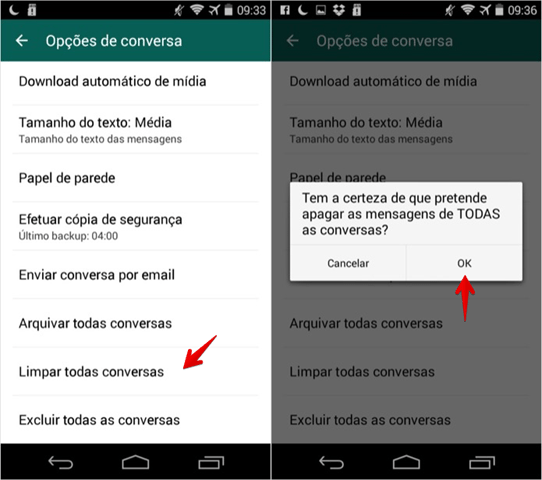
Tutorial – Como apagar todas as conversas do WhatsApp

Aprenda como apagar todas as conversas com amigos e grupos do whatsapp de uma só vez, se acaso seu whatsapp estiver dando erro para abrir alguma conversa ou travando;
1º Abra-o aplicativo depois toque sobre os três pontos pontilhados na parte esquerda do aplicativo, depois toque em “configurações” depois “opções de conversa”;
2015_04_27_19_48_39jpgpng 
2º Logo para finalizar, toque em “Limpar todas as conversas” e confirme a escolha clicando em “ok”;
2015_04_28_09_38_05jpg
Pronto! agora você sabe apagar suas conversas do whatsapp de maneira rápida e fácil;

Free Nokia Flash Files And Firmwares Downloader

To most mobile phone software engineers, firmwares for every phones are necessary files to have.
Why? Because you need firmwares or otherwise known as flash files (for Nokia phones) to flashing, upgrading, downgrading and even in unlocking most if not all phones.

Nokia, BlackBerry and iOS firmwares are quiet easy to download because they are compiled and can be downloaded straight from there respective servers.

However, Nokia requires a bit more intelligence in downloading the flash files, that's if you are downloading from the internet.

Here, I am sharing with you a Windows Program software that can be used to download any Nokia phone flash files. It can be used to download Nokia Lumia (Windows Phone Firmware) flash files, Nokia Symbian Anna and Symbian Belle flash files and other old Nokia phones flash files which include the Nokia Symbian SV3, SV4, SV5 and SV6 flash files.

This Nokia flash files downloader can be installed on any Windows PC from Windows XP, Windows Vista, Windows 7 and Windows 8 though, as far as I am concerned; it works best on Windows 7.

How Do I Use the Nokia Flash Files Downloader

1- Download the Nokia Flash Files Downloader from here.
2- Install the Nokia Firmwares Downloader On your PC.
3- Lunch the Nokia Firmware Downloader by double-clicking on the program.
4- Go back to your PC's Desktop, create a new folder with a unique name you can remember.
5- Go back to the Nokia Flash File Downloader, locate the phone's flash file you wish to download, note its RM-Number down.
6- Go back to the folder you created on step 4 above. Inside the folder, create another folder and name it as the name of the phone's RM number e.g RM-878.
7- Go back to the Nokia Flash File Downloader and mark all the flash files you need for that phone then, click "Download".
8- Navigate to the folder you created for the phone and select it.

You can now relax and watch while your downloads continue.

Don't understand the Flash Files Downloading process? See the video attached below:


How to Flash Nokia Phones :Complete Guide

For some reasons, flashing a Nokia phone may be demanded and most of these reasons are usually connected to the software malfunctions of some sorts on the phone.

In this tutorial, we will be discussing Nokia phones flashing and means by which Nokia phones could be flashed.

Why Flash A Nokia Phone?

Before we can conclude that a Nokia phone requires flashing, certain malfunctions may have occurred. Below here, I enlist few things that might eventually result in flashing most Nokia phones.

1- If a Nokia phone fails to boot on fully, flashing the phone could solve the problem.

2- If certain applications fail to open on the phone. Applications like Native (Nokia) browser that comes with the phone, Nokia store amongst others -flashing is necessary to solve the problem.

3- If a Nokia phone fails to power thus, if it does not power at all -flashing the phone could resolve the issue.

4- On-and-off problem which is usually caused by corrupted system files on the phone can also be corrected by flashing the Nokia phone.

5- White-Screen display; this problem is common with Nokia Asha phones and Nokia Symbian V3 phones and such error/malfunctions can be corrected by flashing the phone.

For a full list of Nokia phones problems that may demand flashing the phone, see the 10 Nokia Phone Problems that Demand Flashing here.

Windows Programs for Flashing Nokia Phones

Although, there are several software that could be used to flash Nokia phones, Here, I would discuss and demonstrate only 2 programs.

1- Phoenix Service Software: this is an official Nokia phones servicing software from Nokia cooperation -that was when Nokia was still mainly Nokia though, the software is still very functional
and still flashes all the available Nokia phones including the latest Nokia phones.

2- NokiaBest: NokiaBest is perhaps the simplest and the commonest application for flashing Nokia phones. NokiaBest supports both COM (Ports) and USB, just as other Nokia phones flashing programs.

Required Files For Flashing Nokia Phones

Before we discuss how to flashing Nokia phones using either of the programs mentioned above, let us quickly highlight the files/items that are required to complete a Nokia phone flashing operation.

1- Your PC (Laptop or Desktop)

2- Nokia Phone Flashing Program. Either of the Nokia phone flashing programs is required but here, we would discuss NokiaBEST and Phoenix Service Software.

3- Nokia USB Drivers Installed on the PC : all the Nokia USB Drivers are required for a successful flashing operation. You can simply install the Nokia PC Suits -it comprises all the drivers.

4- USB Cable : a compatible USB Cable for the Nokia phone should be made ready. In the case that USB fails, you may need to use COM PORT.

5- Flash Files : flash files are otherwise known as firmwares. This is where Nokia Phones System files are packed. The flash files are being used in upgrading, unlocking, flashing and even downgrading Nokia phones.

Preparing your PC for Nokia Phone Flashing

This is a topic necessary to be discussed here. To make flashing any Nokia phone easier and with much less struggles, you should prepare the PC for flashing operation first.

The steps given below are expected to be done prior to flashing any Nokia phone on the PC.

1- Download And Install Nokia PC Suite: Nokia PC Suit is a long time official Nokia phones manager from Nokia. The Nokia PC Suit comes with all Nokia phones drivers except for the Nokia-Windows phones which include the Nokia Lumia and Normandi phones.

Meanwhile, you may install the Nokia Manager for Store or the NokiaCareSuit for the Nokia-Windows phones. By having the two (2) programs installed on your PC, you have had all the Nokia phones drivers installed on your PC.

2- Install Nokia Phones Flashing Programs: depending on your choice, you may decide to install as many Nokia phone flashing programs as you want. All that is necessary is that, get them installed on the PC.

3- Prepare Nokia Phones Flash Files Folder: details about flash files are discussed further within this article. If you have had Nokia Phone flash files, compile them in a folder otherwise, download and assemble them within a folder on your PC.

You may decide to have a backup copy of that folder on your PC -just in case.

And by that, you have done more than 80% of the work.

How to Flash Nokia Phones

As mentioned above, we would be discussing two (2) programs for flashing Nokia phones and just below here I explain with illustrations on how to flashing Nokia phones using both of the programs to be discussed.

A: How to Flash Nokia Phones Using NokiaBEST
NokiaBEST is a premium Windows program suitable for flashing most Nokia phones.

Now, Flashing Nokia Phones with NokiaBEST;

1- Install the NokiaBEST Program on your PC -the download link for the working NokiaBEST is included in the eBOOK copy of this tutorial. The eBOOK discusses various software repair guides for Nokia, BlackBerry, Android and iOS.

It is sold for N2,500 -in case you are interested, use the contact us link or join our group here to get your copy of the eBOOK.

2- On successful installation, double-click the NokiaBEST program to lunch it on your PC. Then, you can setup NokiaBEST as in the image below.
Click the Image for A Wider View

From the image above, you can see that the data package (Where Nokia Flash Files are located on the PC) is set to C:\Program Files\Nokia\Phoenix\Products by default, if you have stored your Nokia flash files in a different location, you may change your directory as seen from the option in the image above.

3- Connect your USB Cable to the PC: connect the USB Cable you wish to use for the flashing operation to the PC and connect the other end to your phone.

4- Let the PC Install the Necessary Drivers: wait for few seconds for the PC to install the drivers necessary for that flashing operation operation before you proceed.

5- Follow the illustration on the image below to commence flashing.
Click Image for A Wider View

i- Select the flashing TAB
ii- Select the RM of the Nokia phone you wish to flash. You can find the RM-Number of that phone at the back (under the phone batter) of the phone or by dialing *#0000#.
iii- Select Flash Mode Settings. From there, select "Full Flash"
iv- Select "Dead Mode"
v- Click "FLASH". You can now sit back, relax and wait until the flashing operation is complete.

NOTE: the tutorial above assumes that you are flashing the Nokia phone in "Dead Mode"

B- How to Flash Nokia Phones Using Phoenix Service Software

Phoenix Service Software is the official software from Nokia released for servicing Nokia phones.
In this tutorial, I supposed you have installed the Phoenix Service Software on your PC.
Now, Flashing your Nokia Phone Using Phoenix Service Software

1- Launch Phoenix service software on your computer by clicking on its icon on your computer's desktop.

2- Connect your phone to the computer using the USB cable. Your phone should be put off and the battery removed from the phone.

3- Wait for a few seconds, insert the battery into the phone while it's still connected and briefly press the power button.
Wait few seconds while phoenix service software detects the connected phone and install the files necessary for the flashing operation.

4- Click on "FLASHING" on the menu option then, scroll to "Firmware Update" and select it.

5- The next box that shows up automatically loads the necessary files needed to complete the operation as in the screenshot below. Just click on "Update Software" and the process begins immediately.
NOTE:
For Trouble-shootings and guidelines, visit 10 Best Practices for Flashing Nokia Phones

Tutorial – Fazer root na maioria dos dispositivos LG

Para você que tem dificuldade em fazer Root em dispositivos LG você só vai precisar dar um clique e pronto. Confira:
Tutorial de Instalação
1º Passo
Baixe o V2 DP ROOT.exe e instale no seu PC (link no final do post;)
2º Passo
Instale os drivers correspondentes ao seu Celular e Android;
3º Passo
Depois, vá até as configurações do seu celular e ative a DEPURAÇÂO USB;
4º Passo
Em seguida, abra o programa V2 DP ROOT.exe já com seu celular conectado e clique em Root, espere alguns minutos, reinicie o celular e pronto.

Testado no LG G2 mini dual
Download: 4shared