How to Perform Clean or Fresh Installation of Windows 10 On your PC

For some months now, Windows 10 has being around and thousands of Windows users have already installed it already though, through the official update that were being pushed to some Windows 7 and Windows 8.1 users. However, it should be noted that the updates are being pushed to genuinely activated Windows 7 and Windows 8.1 users ONLY.

In this tutorial, I take you through the step by step guides on how to install Windows 10 on your PC. Refer to the guides here on How to Create a Bootable Windows 10 Flash Drive or USB Disk as that would make the fresh Windows 10 installation easier for you.

Now, let's get started!
This tutorial involves the use of a bootable Windows 10 Flash Drive or USB Disk, hence, you should refer to the tutorial referenced above. Also, Product Key would be required to activate your copy of Windows 10 on your PC therefore, you are advised to obtain one or perform a free upgrade. See the Step 4 discussed below for details.

INSTALLING WINDOWS 10 ON YOUR PC

Step 1: First and foremost, backup all of your data to either a cloud-based service or an external hard drive. This is important because this process will most likely clear all the documents on your PC.

Step 2: Make sure your computer meets minimum system requirements for Windows 10 to avoid interruption of the operation halfway through.

ACCEPTABLE PC CONFIGURATION FOR INSTALLING WINDOWS 10:
CPU: 1GHz processor or faster
RAM: 1GB for 32-bit / 2GB for 64-bit
Storage space: 16GB for 32-bit / 20GB for 64-bit
Graphics: DirectX 9 capable video card

Step 3: Get a spare USB flash drive with at least 4GB of free space and make bootable Windows 10 drive out of it by following the instructions here: How to Create a Bootable Windows 10 Flash Drive
Also, DO NOT forget to get the product key ready. See the note below:

Step 4: If you have a Windows 10 product key, you may proceed otherwise, you will need to first go for the Microsoft’s free upgrade offer before you can do a clean install.
Microsoft’s free upgrade offer requires you to be either on genuine version of Windows 7 SP1 or Windows 8.1 Update. And you can upgrade to your free Windows 10 copy by following the tutorial earlier discussed here: How To Download And Install Windows 10 Free Upgrade.

Step 5: Once upgraded, make sure your copy of Windows 10 is activated. You can check this from Control Panel > System and Security > System.

This is important because Windows product keys are tied to the hardware of your computer. Meanwhile, if you have used the Microsoft’s free offer earlier discussed for upgrading your PC from Windows 7 or 8.1 to Windows 10, Microsoft knows the computer hardware you upgraded on.
Hence, once upgraded and activated on Windows 10, you can do a clean install of Windows 10 at anytime – even after completely formatting your hard drive, it will remain activated as long as it is done on the same hardware.

Step 6: With the bootable USB plugged in, boot your PC to BIOS or SETUP. The procedure for entering BIOS or SETUP differs for every computer and hardware.
If you don’t know how to enter BIOS or boot from USB drive, refer to the instruction here: How to Enter BIOS, SETUP and Boot Menu Option On PC.

Step 7: Installing Windows 10
Once you have booted from the USB flash drive, you will be greeted with Windows 10 setup screen. Simply follow the on-screen prompts, (make sure you have backed up everything in Step 1 above first!) and select the hard drive you wish to install Windows 10 on.

When prompted for product key during installation, enter the genuine Windows 10 product key if you have one. If you used the Microsoft free upgrade offer as explained in Step 4 above, simply skip the product key page.

Final Step: Activating Windows 10
Once Windows 10 is installed and you have logged in, your copy of Windows 10 will automatically be activated. In case you encounter issues activating Windows 10 after fresh installation, open Command Prompt in administrator mode, type this command and press enter:
slmgr.vbs /ato
Wait few seconds for the command to run and pronto! Your Windows 10 is now activated.

Advertisement


Similar Tutorials


CM 12.1, Android 5.1.1 for HTC One XL: Reviews and Installation

For nearly two (2) months now, CM 12.1 for the HTC One XL nightly(ies) have being released and few of us here at aryk.co have grabbed it and flashed on various HTC One XLs. Although, CM 11 for the HTC one XL was great, CM 12.1 has proven that there is more to enjoy from the phone, HTC One XL.

From the display to the glossy feel, battery life to the signal strength; the CM 12.1 for the HTC One XL is truly a nice update and upgrade at a time.
Based on my experience of the CM 12.1, android 5.1.1 on the HTC One XL, I highlight here, few of the noticeable outstanding improvements on the HTC One XL.

1- GUI, THE GRAPHICAL USER INTERFACE:
No doubt, this is probably the first improvement anyone who have used the CM 12.1 on HTC One XL might discuss. This is because it is undoubtedly the first notable improvement in the CM-12.1 for the phone. The Graphical User Interface, GUI is more glossy, smoother and even faster compare to the previous CM 11 for the same phone.

2- BATTERY LIFE:
I have noticed significant improvements in the HTC One XL battery live span, even with data and every apps running; it serves better than before. Though, it takes longer time to be fully charged, it lasts much longer than usual.

3- SIGNAL STRENGTH:
Talking of the signal strength, I must say that I have a +(plus) in this as well. The H and H+ becomes more stable and WiFi/Hotspot range is noticeably better.
This might be one of the reasons why the battery span is improved, it does not hit up except when there is generally poor signal; I must note. Other than that, in fact, it gets more cool than I ever remember.

4- SPEED:
The HTC One XL is powered with Dual-core 1.6 GHz Cortex-A15 & Dual-core 1.2 GHz Cortex-A7 CPU, though, this CPU is of a low end compare to other phones running android 5.1.1; the CM 12.1 is still able to run faster and smoother on the phone.

5- MULTIMEDIA:
Although, it is not conclusive that the improvement in the camera and video output is from the camera or not, but it is noted that the video quality improved following the upgrade and the pictures taking after the upgrade are of better quality compare to the previous ones.

CM 12.1, android 5.1.1 for the HTC One XL, just like the same ROM for Samsung Galaxy S4, i9500 comes with AudoFX, an application for sound management.
This among other things help the HTC One XL produce a better sound quality.


CONCLUSION
The overall experience of the CM 12.1 on the HTC One XL has being great and loving. No lagging, no bugs and no irritation has being experienced so far. If you have an HTC One XL and would like to upgrade it to the CM 12.1 which is android 5.1.1, in my opinion; you now have a GO!

You may download CM 12.1, Android 5.1.1 for your HTC One XL here and here is How to Upgrade your HTC One XL to Android 5.1.1.

Advertisement


Similar Tutorials


How to Install Windows 10 Update On your PC

If you are one of those that have being waiting for the Windows 10, what you have being expecting for some months now is live. Windows 10 is now live. If you are eligible for a free upgrade, you probably have gotten the notification for the download.

In this tutorial, I shall put you through the step by step guide on how to upgrade your current Windows OS to the latest Windows 10 via the Windows Update.
So, let's proceed. Shall we?

INSTALLING WINDOWS 10 UPDATE ON YOUR PC

Step 1- Run Windows Update: this is done to check if your reserved Windows 10 update is ready for install.
NOTE:
Microsoft Windows 10 roll-out is done on phase by phase basis and for this reason, not everyone will receive the update at a time even if you are eligible.
Meanwhile, if your Windows Update is showing you ‘We’ll let you know when the upgrade is ready to be installed on this PC.’, do not worry, you will still get it or perhaps; you may see the guide here: How to Create Bootable Windows 10 USB Disk and then, use it to perform a Clean Installation of Windows 10 here.

Step 2: Install the Downloaded Windows 10 Upgrade: if the Windows 10 Update is ready for your PC, you may proceed with the installation otherwise, Windows Update will attempt  downloading the update and when Windows Update is finished downloading the updates, you will get the prompt as seen in the image below.
NOTE:
Prior to this update,you must have had all previous updates for Windows installed on your PC. If you have Windows Update set to "On",it is likely that you already have all the updates installed otherwise; Windows might download the updates including the previous updates- and that's a lot of files to download.

Either click on Restart now on Windows Update screen. Or, Start the upgrade now on the screen.

Step 3: Your PC should now reboot and the Windows 10 installation should automatically begin.

The installation is divided into three phases: Copying files, Installing features and drivers, then, Configuring settings.
NOTE:
i- You don’t need to do anything while the Windows 10 upgrade is in progress. Just wait patiently until it completes.
ii- During the installation process, your computer may restart a couple of times. Don't worry. It is normal.
iii- The duration of the process can take between 10 to 15 minutes, depending on the size of your data and speed of your computer.

Step 4: Once the installation is complete, the PC will boot into the screen.

Step 5: Now simply follow the on-screen instructions to get to the login screen.
Good luck!

Advertisement


Similar Tutorials


Windows 10 ISO File: Download Here

Windows 10 ISO file is now available and ready for download. If you are having a PC that is eligible for the Windows 10 upgrade and have yet received the notification to download the upgrade, or that you wish to have the Windows 10 ISO file so that you may install it on another PC, here is how to download the ISO file for Windows 10 and burn it on formatted or blank DVD or USB disk.

This Windows 10 ISO file is especially useful for those willing to have the Windows 10 installed on their PCs but are not eligible for the free upgrade or do not have genuine (activated) Windows 7 or Windows 8.1 installed on their PCs. -these are the major criteria for receiving the Windows 10 upgrade for free.

Although, this download is official, you don’t need any product key to download the ISO media file from Microsoft. Just about anyone can download it as long as internet connection is available. Though it is important to note that genuine Windows product key will be required during clean installation process.

Meanwhile, before you initiate the download, you should be sure that you have enough storage space available on the computer being used for the download.
Also, a blank USB storage device or DVD with at least 4GB of space for the creation of media file following successful download of the ISO file though, this is not necessary as it could be done anytime.

You may download the Windows 10 ISO File from here (Windows x64 bit) and here for (Windows x32 bit).
And once your download is complete, you may see the guide here: How to Create A Bootable Windows 10 USB or DVD Disk for the complete step by step process that should follow.

NOTE:
See the image below to determine the bit of your PC.

Advertisement


Similar Tutorials


How to Create Windows 10 Bootable DVD or USB Disk Using Media Creation Tool

Following the introduction of the Windows 10, Microsoft released Windows 10 Media Creation Tool. The Media Creation Tool is being used for burning Windows 10 ISO File in a data DVD or USB Disk.
In this tutorial, I explain the step by step guide on how to download and create or burn Windows 10 ISO file on a data DVD or USB disk and making it bootable using the official Windows 10 Media Creation Tool from Microsoft.
So, let’s get started.

CREATING WINDOWS 10 BOOTABLE FLASH DRIVE OR DVD DRIVE

Step 1: Download Windows 10 media creation tool for 32-bit machines here | 64-bit machines here.

Step 2: Once the download is complete, run the tool. You should be asked “What do you want to do?“, select the “Create installation media for another PC” and then, click “Next“.

Step 3: Select the relevant language and Windows 10 version from the field. You also have the option to select 32-bit or 64-bit variant of Windows 10. Choose your choices and Click “Next“.

Step 4: Insert the USB flash drive you wish to use for the operation into any free USB port on the computer. Make sure the drive is formatted correctly and has at least 4GB of available storage space on it.
Also, you should connect the FLASH DRIVE directly to the USB port.
For the best result, you should use an entirely empty drive for this process as all the existing content will be overwritten.

Step 5: Select “USB flash drive” and click “Next“.

Step 6: Point the tool at the relevant USB drive when prompted.

Step 7: The tool should now download the files based on your selections and preferences. The downloads will then be used to create a USB bootable version of Windows 10.
Hit the “Finish” button when it is all done to end the process.

The USB Flash Drive can now be used to boot Windows 10 and to perform fresh installation of Windows 10 on any computer. Meanwhile, note that activation
key would be required each time you use the Flash Drive to install Windows 10 on other PCs.

Advertisement


Similar Tutorials


How to Perform A Clean Installation of Windows 7 on your PC

Formatting your PC using a Windows 7 setup disk simply means Installing Windows 7 on your PC and vice versa. Here, explain the step by step procedures for installing Windows 7 on your PC.

Although, this tutorial has being put simply enough and certain points are noted and explained where necessary meanwhile, if any point is not clear to you, kindly ask your question in the comment box/section.

PREREQUISITES:
i- Do A Backup: although, you may still be able to recover your data and other documents by retrieving them in the ...windows.old (similar to when you install Windows 8 on your PC which explained here) folder following successful installation of the Windows 7, you are advised to either backup those files on an hard drive or to a cloud-based service such as Box.com or Mediafire and
the likes.
Who knows!? Anything can happen.

ii- Check System Requirements: for optimum performance, you are advised to check the Windows OS (Operating System) requirement. You may check Windows 7 requirements here.
Ideally, the configurations given below is OK with either Windows 10, 8, 7 or even XP. Although, depending on your needs and reasons for the PC, you might require a much better configuration to enjoy optimum performances.

ACCEPTABLE PC CONFIGURATION FOR INSTALLING WINDOWS 7
CPU: 1GHz processor or faster
RAM: 1GB for 32-bit / 2GB for 64-bit
Storage space: 16GB for 32-bit / 20GB for 64-bit
Graphics: DirectX 9 capable video card

FORMATTING or INSTALLING WINDOWS 7 ON YOUR PC

STEP 1- Secure a Windows 7 Bootable DVD: get a bootable Windows 7 DVD and slot it into your PC DVD ROM. You can use an external DVD ROM if you are performing this installation on a Mini laptop or Windows tablet.

STEP 2- Restart your PC: now, simply short down the PC and restart it. While the PC is being restarted, press and hold the KEY (or key combo) for entering the BOOT MENU options for your PC.
For different PC, the boot menu key combination is different.
Example;
For DELL PC it is f12 while ACER PC is f2 and Delete. Click here for the complete list of the hot keys used for booting most PC to boot menu or BIOS.

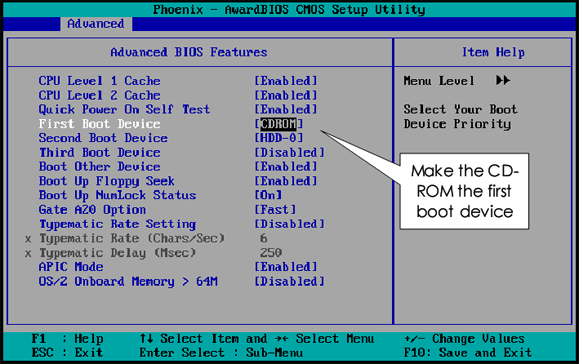
STEP 3- Configure the PC to Boot from the CD/DVD: when the PC is finally on the Boot Menu options, set the DVD ROM or the External DVD ROM (if you are formatting the PC using external DVD) as the first boot and then, press f10 to save your Settings and restart.

Now, the PC will attempt to boot from DVD. When prompted, press any key to continue.

STEP 4- Configure your Locale Settings: here, choose the native language and location you wish that your Windows 7 be configured with and then; proceed by clicking "Next".

STEP 5- Choose "INSTALL" and then, Select "Windows OS Bit": select either x86 for 32bit Operating System or x64 for 64bit Operating System. Click next and then, Agree to the Terms before you proceed.

STEP 6- Choose "either "Upgrade" or "Custom" Installation: here, you are expected to select "Custom" installation.

When selected, almost immediately, Windows should display the partitions available on the PC. Choose your desired partition and proceed.

STEP 7- The INSTALLATION Begins: now, all you have to do is wait until the installation is complete.

NOTE:
Explained above is the procedures for installing Windows 7 on your PC meanwhile, be informed that the sequence may slightly differ depending on the Windows Setup you are using.

Advertisement


Similar Tutorials


How to Perform A Clean Installation of Windows 8 on your PC

Either for upgrade purpose, trouble-shooting or that you simply wish to format your Windows PC, here is a simple step by step guide on how to install Windows 8 on your PC.

This tutorial simply puts you through how to installing Windows 8 on your PC. Certain points are explained and noted where necessary meanwhile, if any point is not clear to you, kindly ask your question in the comment box/section.

PREREQUISITES:
i- Do A Backup: although, you may still be able to recover your data and other documents by retrieving them in the ...windows.old folder following successful installation of the Windows 8, if you have some files you wish to backup from the PC, you are advised to either backup those files on an hard drive or to a cloud-based service such as Box.com or Mediafire and the likes.
Who knows!? Anything can happen.

ii- Check System Requirements: for optimum performance, you are advised to check the Windows OS (Operating System) requirements. You may check Windows 8 requirements here.
Ideally, the configurations given below is OK with either Windows 10, 8, 7 or even XP. Although, depending on your needs and reasons for the PC, you might require a much better configuration to enjoy optimum performances.

WINDOWS 8 PC CONFIGURATION REQUIREMENTS
CPU: 1GHz processor or faster
RAM: 1GB for 32-bit / 2GB for 64-bit
Storage space: 16GB for 32-bit / 20GB for 64-bit
Graphics: DirectX 9 capable video card

FORMATING or INSTALLING WINDOWS 8 ON YOUR PC

STEP 1- Secure a Windows 8 Bootable DVD: get a bootable Windows 8 DVD and slot it into your PC DVD ROM. You can use an external DVD ROM if you are performing this installation on a Mini laptop or Windows tablet that does not DVD ROM inbuilt.

STEP 2- Restart your PC: now, simply short down the PC and restart it. While the PC is being restarted, press and hold the KEY (or key combo) for entering the BOOT MENU options for your PC. For different PC, the boot menu key combination is different.
Example;
For HP PC it is f9 while DELL PC is f12. Click here for the complete list of the hot keys used for booting most PC to boot menu or BIOS.

STEP 3- Configure the PC to Boot from the CD: when the PC is finally on the Boot Menu options, set the DVD ROM or the External DVD ROM (if you are formatting the PC using external DVD) as the first boot and then, press f10 to save your Settings and restart.

Now, the PC will attempt to boot from DVD. When prompted, press any key to continue.

STEP 4- Choose either "Upgrade" or "Custom" Installation: here, you are expected to select "Custom" installation.

When selected, almost immediately, Windows should display the partitions available on the PC.
Choose your desired partition and proceed.

STEP 5- Click "INSTALL" and "Accept the Terms" then, the installation will begin immediately.

NOTE:Explained above is the sequnce/procedures for installing Windows 8 on your PC meanwhile, be informed that the sequence may slightly vary depending on the Windows Setup you are using.

Advertisement


Similar Tutorials