Google I/O 2011: How to NFC
Gingerbread brings a comprehensive NFC reader/writer API, and some modest but surprisingly powerful P2P support. Come hear why you should care about NFC technology, what kinds of applications are possible right now, and best practices for deployment.
Near Field Communication (NFC) is a set of short-range wireless technologies, typically requiring a distance of 4cm or less to initiate a connection. NFC allows you to share small payloads of data between an NFC tag and an Android-powered device, or between two Android-powered devices.
Split Action Bar for Android 4
The old article demonstrate how to "Create ActionBar using XML" for Android 3.
When your application is running on Android 4.0 (API level 14) and higher, there's an extra mode available for the action bar called "split action bar." When you enable split action bar, a separate bar appears at the bottom of the screen to display all action items when the activity is running on a narrow screen (such as a portrait-oriented handset). Splitting the action bar to separate the action items ensures that a reasonable amount of space is available to display all your action items on a narrow screen, while leaving room for navigation and title elements at the top.
To enable split action bar, simply add uiOptions="splitActionBarWhenNarrow" to your <activity> or <application> manifest element.
Split Action Bar:

Normal Action Bar:
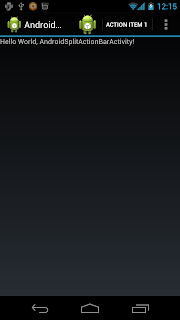
- Add android:uiOptions="splitActionBarWhenNarrow" in AndroidManifest.xml.
- /res/menu/menu.xml define the items in Action Bar.
- Override onCreateOptionsMenu() method to inflate menu.
When your application is running on Android 4.0 (API level 14) and higher, there's an extra mode available for the action bar called "split action bar." When you enable split action bar, a separate bar appears at the bottom of the screen to display all action items when the activity is running on a narrow screen (such as a portrait-oriented handset). Splitting the action bar to separate the action items ensures that a reasonable amount of space is available to display all your action items on a narrow screen, while leaving room for navigation and title elements at the top.
To enable split action bar, simply add uiOptions="splitActionBarWhenNarrow" to your <activity> or <application> manifest element.
Split Action Bar:

Normal Action Bar:

- Add android:uiOptions="splitActionBarWhenNarrow" in AndroidManifest.xml.
<?xml version="1.0" encoding="utf-8"?>
<manifest xmlns:android="http://schemas.android.com/apk/res/android"
    package="com.exercise.AndroidSplitActionBar"
    android:versionCode="1"
    android:versionName="1.0" >

    <uses-sdk android:minSdkVersion="14" />

    <application

        android:icon="@drawable/ic_launcher"
        android:label="@string/app_name" >
        <activity
            android:uiOptions="splitActionBarWhenNarrow"
            android:name=".AndroidSplitActionBarActivity"
            android:label="@string/app_name" >
            <intent-filter>
                <action android:name="android.intent.action.MAIN" />

                <category android:name="android.intent.category.LAUNCHER" />
            </intent-filter>
        </activity>
    </application>

</manifest>
- /res/menu/menu.xml define the items in Action Bar.
<menu xmlns:android="http://schemas.android.com/apk/res/android">
    <item android:id="@+id/itemid_0"
        android:title="Action Item 0"
        android:icon="@drawable/ic_launcher"
        android:orderInCategory="0"
        android:showAsAction="ifRoom|withText" />
    <item android:id="@+id/itemid_1"
        android:title="Action Item 1"
        android:orderInCategory="0"
        android:showAsAction="ifRoom|withText" />
    <item android:id="@+id/itemid_2"
        android:title="Action Item 2"
        android:orderInCategory="0"
        android:showAsAction="ifRoom|withText" />

</menu>
- Override onCreateOptionsMenu() method to inflate menu.
package com.exercise.AndroidSplitActionBar;

import android.app.Activity;
import android.os.Bundle;
import android.view.Menu;
import android.view.MenuInflater;

public class AndroidSplitActionBarActivity extends Activity {
    /** Called when the activity is first created. */
    @Override
    public void onCreate(Bundle savedInstanceState) {
        super.onCreate(savedInstanceState);
        setContentView(R.layout.main);
    }

 @Override
 public boolean onCreateOptionsMenu(Menu menu) {
  MenuInflater menuInflater = getMenuInflater();
        menuInflater.inflate(R.menu.menu, menu);

        return super.onCreateOptionsMenu(menu);
 }
}
Programmatically create layout and view, with ID assigned by setId().
This example demonstrate how to create layout and view at run time using Java code, instead of XML code. We can assign IDs for the layouts/views by calling setId() mdthod.

In order to call setId() with named id, create /res/values/ids.xml to define out ID resources.
Main code.

In order to call setId() with named id, create /res/values/ids.xml to define out ID resources.
<?xml version="1.0" encoding="utf-8"?>
<resources>
    <item type="id" name="layout_id"/>
    <item type="id" name="image_id" />
</resources>
Main code.
package com.exercise.AndroidSetId;

import android.app.Activity;
import android.os.Bundle;
import android.view.View;
import android.view.View.OnClickListener;
import android.view.ViewGroup.LayoutParams;
import android.widget.ImageView;
import android.widget.LinearLayout;
import android.widget.Toast;

public class AndroidSetIdActivity extends Activity {
    /** Called when the activity is first created. */
    @Override
    public void onCreate(Bundle savedInstanceState) {
        super.onCreate(savedInstanceState);

        LinearLayout layout = new LinearLayout(AndroidSetIdActivity.this);
        layout.setId(R.id.layout_id);
        LayoutParams layoutParams
         = new LayoutParams(LayoutParams.MATCH_PARENT, LayoutParams.MATCH_PARENT);
        layout.setLayoutParams(layoutParams);
        layout.setOrientation(LinearLayout.VERTICAL);

        ImageView imageView = new ImageView(AndroidSetIdActivity.this);
        imageView.setId(R.id.image_id);
        imageView.setImageResource(R.drawable.ic_launcher);
        LayoutParams imageViewLayoutParams
         = new LayoutParams(LayoutParams.WRAP_CONTENT, LayoutParams.WRAP_CONTENT);
        imageView.setLayoutParams(imageViewLayoutParams);

        layout.addView(imageView);

        setContentView(layout);

        layout.setOnClickListener(viewOnClickListener);
        imageView.setOnClickListener(viewOnClickListener);
    }

    OnClickListener viewOnClickListener
    = new OnClickListener(){

  @Override
  public void onClick(View v) {

   int myId = v.getId();

   Toast.makeText(AndroidSetIdActivity.this,
     "ID: " + String.valueOf(myId) + " clicked",
     Toast.LENGTH_LONG).show();
  }};
}
Schedule of Android Sessions in Google IO 2012
Be among the first to see the latest demos and developments from Android. Watch the keynote and over 40 sessions live streamed from Google I/O! It all begins June 27, at 9am.
Check the Android sessions schedule.

Check the Android sessions schedule.

Improve Android Emulator performance with Intel Atom x86 System Image
Back to the releasing of Android SDK r17, Intel Atom x86 System Image was included. AVD with Intel Atom x86 System Image can access the host CPU natively and offer significantly faster execution.

To install Intel Atom x86 System Image, click Window from Eclipse menu, select Android SDK Manager. Check to install package of Intel Atom x86 System Image, it's available on Android 4.0.3(API 15) and 2.3.3(API 10) currently.

Create emulator using Intel Atom x86 System Image
- Window -> AVD Manager. New a AVD.

- Select CPU/ABI of Intel Atom (x86). Enter others as needed. Click Create AVD.


To install Intel Atom x86 System Image, click Window from Eclipse menu, select Android SDK Manager. Check to install package of Intel Atom x86 System Image, it's available on Android 4.0.3(API 15) and 2.3.3(API 10) currently.

Create emulator using Intel Atom x86 System Image
- Window -> AVD Manager. New a AVD.

- Select CPU/ABI of Intel Atom (x86). Enter others as needed. Click Create AVD.

OpenSense SDK Update Available for Download Now

HTC announce new updates to the HTC OpenSense Software Development Kit (SDK) at htcdev.com! Now you can download the update and begin implementing your own innovative new apps that plug into features like the Sound Enhancer, Lock Screen, new Common Controls or Media Link HD (coming soon).
Source: HTC Blog
RED BULL X-FIGHTERS 2012

Descrição:
Resumo: RED BULL X-FIGHTERS 2012 - Um jogo altamente viciante de freestyle motocross!
Experimente a emoção de o melhor evento de Motocross Freestyle lá fora! Inicie sua moto, acelerar e Jump! Impressionar o júri e platéia, puxando de cair o queixo truques e lutar contra seu caminho até o topo!
CONTROLES:
- Execute truques desenhando gestos na tela
- Verifique o Trikipedia para uma grande lista de gestos
- Acelere sua moto, premindo o botão do crânio
- Aumente o arrastando para baixo o crânio (cuidado - seu impulso é limitado)
CARACTERÍSTICAS
- 4 modos de jogo repletos de acção
- Vença o World Tour 2012 um jogo todos os 6 pontos oficiais
- Enviar seus amigos do Facebook no jogo desafios
- Desbloquear ternos de driver, bicicletas e dezenas de truques
- Jogue como Red Bull X-Fighter campeão mundial Dany Torres
- Combine Truques FMX e criar seu próprio estilo
- A realização integral e sistema de ranking incluindo Game Center e
global / nacional rankings
- Música Oficial, por TWIN ATLÂNTICO (Registros Red Bull)
- 4 modos de jogo repletos de acção
- Vença o World Tour 2012 um jogo todos os 6 pontos oficiais
- Enviar seus amigos do Facebook no jogo desafios
- Desbloquear ternos de driver, bicicletas e dezenas de truques
- Jogue como Red Bull X-Fighter campeão mundial Dany Torres
- Combine Truques FMX e criar seu próprio estilo
- A realização integral e sistema de ranking incluindo Game Center e
global / nacional rankings
- Música Oficial, por TWIN ATLÂNTICO (Registros Red Bull)
Jogue o Tournament Mode e mostrar o que você tem em todos Tour oficial Pára do Red Bull X-Fighters Mundial de Turismo 2012. Ganhe créditos e desbloquear novos truques, eventos, motos e pilotos!
Instalação:
1)Mova o arquivo .apk para seu Sd:/
2)Extraia o data para Sd:/android/data/
3)Instale o Apk
4)Inicie o jogo...
5)Divirta-se!
2)Extraia o data para Sd:/android/data/
3)Instale o Apk
4)Inicie o jogo...
5)Divirta-se!
Subscribe to:
Comments (Atom)