How to Remove FRP Lock On All Tecno Android Devices Using NCK Box

NCK BOX is an excellent tool for removing FRP lock on android devices. In this tutorial, I will discuss how to successfully remove FRP lock on any Tecno android devices using NCK BOX.
Before I proceed, it should be noted that this tool only works with Tecno devices powered with MTK chipset therefore, other Tecno devices powered with Qualcomm or any other chipsets may not work by this tutorial.

Removing FRP Lock On Tecno Android Devices Using NCK BOX

1. Download NCK BOX from your ABC Package here on Mediafire or Mega.

2. Download and install MTK Android drivers on your PC. You may use PDanet+ or Install USB VCOMM Drivers from here!Important.

3. Now, locate NCK BOX you downloaded from the step one above. It is compressed in a ZIP file, unzip it and then, install the setup file on your PC and launch it. Launch/Open NCK Box you just installed as Admin.

4. On NCK Box, locate Service tab. From the third (3) pane, Locate FRP and click it. Pay attention to the Warning NCK Box displays and make sure your Tecno android device meets up that criteria.
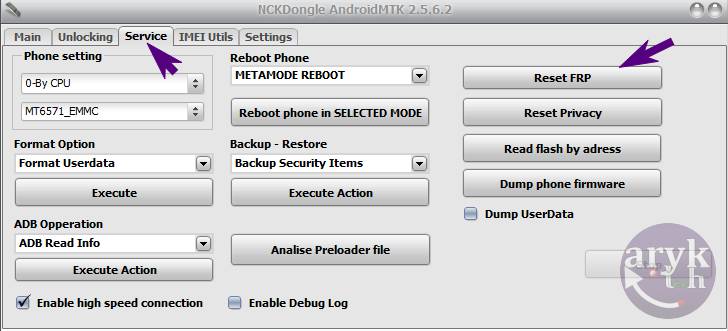
Remove FRP Lock On NCK Box

5. Now, remove battery from your Tecno android device and insert it again. If the battery cannot be removed, put off the phone.

6. While NCK Box awaits, connect a compatible USB Cable to your PC and then, the other end to your Tecno android device.

7. Almost immediately, if the installed drivers work with your Tecno android device, NCK Box should detect the phone and initiate the operation sequence. This should not take more than 5 minutes. When NCK Box is done, your phone will restart and if it doesn't, disconnect the phone and restart the phone by yourself.

8. Congratulations! By now, you should be greeted with your setup screens. Complete the setup and enjoy your phone!

What is FRP Lock?

For informational reasons especially to those that do not know what FRP Lock is or means, a brief note about what FRP Lock is and its meaning should be included here so that you may know how to avoid re-occurrence of the same issue afterwards.

If your Tecno android device asks for owners credentials that was used when the phone was first setup. Or, maybe it's demanding for a specific Google account and rejects all the ones you have entered on the phone though the credentials (password and username) entered are correct, then, most likely; your Tecno android device has been locked-up to FRP.

Factory Reset Protection, FRP for short, is a security measure embedded on android devices. Starting from Android 4.4.4 or more commonly, Android 5.0 Lollipop, ends up in FRP when you factory-reset the phone. FRP Lock is triggered more commonly when you factory-reset such android device from the recovery or using a PC program.
In essence, FRP is there to protect unauthorised access to such android devices following a Userdata-wipe or Factory-reset operation.

How to Prevent FRP Lock Re-occurrence On your Tecno Android Devices

It's simple. To prevent your Tecno android device from ending up in FRP-Lock, you simply have to delete or remove any and all Google accounts associated with that device. By these, I mean all the Google accounts that are activated on your Tecno android device.
To know how many Google accounts are associated with your Tecno android device, go to Settings >> Accounts >> Google. Click on Google and you will be able to see the list of Google accounts already associated with your device.

How to Delete or Remove Google Account On Tecno Android Device
1. Go to Settings >> Accounts >> Google.
2. From Google under Accounts, tap on each of the Google accounts listed and then, press/tap the Menu button or iCon.
3. From the options that show up, click Remove Account.
4. Repeat this process for every Google Accounts on your Tecno android device until there is none left.

Now, you may peacefully proceed to wiping the userdata or factory-reset your Tecno android device.

Recommended:
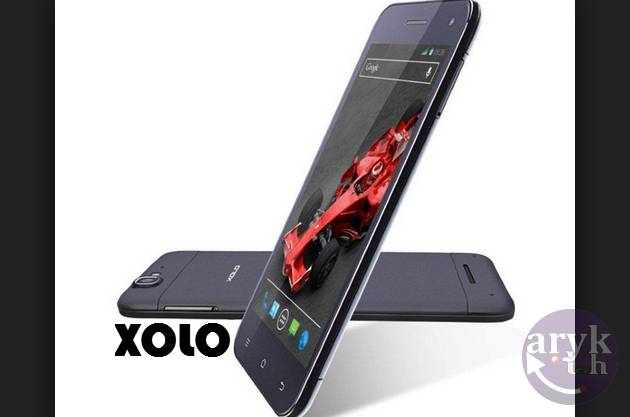
Xolo Q700 Stock Firmware, Stock ROM Download

Xolo Android Stock ROM Firmware PAC File
This Xolo Q700 Firmware, Stock ROM file can be used with any service tools capable of Flashing Stock ROM file on Xolo Android devices.
Stock firmware are mostly needed to either upgrade your Xolo Q700, downgrade it or, to simply flash the phone to correct certain software issues or malfunctions on the phone. Here on this page I have contained the download link for the complete Xolo Q700, Stock ROM file which can be used to flash factory OS back to your Xolo Q700.

How to Download Stock Firmware and Flash Xolo Q700 with the Stock ROM

1. Download SP Flash Tool from here and install it on your PC. If you don't have MTK Android drivers installed on your PC yet, you must install it too. Download VCOM Drivers here

2. Download your Xolo Q700 firmware, Stock ROM File from here.

3. Open the SP Flash Tool you downloaded from the link above. It is compressed in a zip file, simply extract it onto a folder on your PC, open the folder to locate flash_tool.exe application and then; double-click it to lunch the program.

4. Go to the folder where you downloaded the Xolo Q700 Stock ROM and open it. It is compressed in a ZIP File, simply decompress/unzip it onto a folder on your PC.

5. On SP Flash Tool, select Scatter Loading. A window should open. Using the browse button, navigate to the folder where you unzipped the Xolo Q700 stock ROM and then select "MTXXXX-ANDROID-SCATTER", from there. Remember: "xxxx" refers to the MTK version of your phone.

6. Once selected, SP Flash Tool will load all the partitions in the Xolo Q700 stock ROM you downloaded. From the list, mark all the partitions EXCEPT these three (3): Preloader, UserData and CACHE.

7. Now, select Download on SP Flash Tool.

8. Put off your Xolo Q700 or remove battery from it and re-insert the battery again. Connect your Xolo Q700 Mobile Phone to the PC and then tap the Power button once.

9. For few seconds, your Windows PC will install the necessary drivers for the flashing operation and then, the flashing operation will commence promptly.

10. When the flashing operation completes, SP Flash Tool will display a green PASS circle. You may then disconnect your phone from the PC.
CONGRATULATIONS! You have successfully flashed your Xolo Q700 to its factory defaults.
NOTE: if you encounter any errors while flashing your Xolo Q700 using SP Flash Tools, see here: Solutions to All SP Flash Tools Errors: Practical Guides

For Graphical Illustrations on how to flash Xolo android devices, see here: How to Flash Xolo Android Device: Step by Step with Pictures

Also Read:

Video Tutorial: How to Flash All MTK Android Devices Including Xolo Q700


How to Remove FRP Lock On All Beeline Android Devices Using NCK Box

NCK BOX is an excellent tool for removing FRP lock on android devices. In this tutorial, I will discuss how to successfully remove FRP lock on any Beeline android devices using NCK BOX.
Before I proceed, it should be noted that this tool only works with Beeline devices powered with MTK chipset therefore, other Beeline devices powered with Qualcomm or any other chipsets may not work by this tutorial.

Removing FRP Lock On Beeline Android Devices Using NCK BOX

1. Download NCK BOX from your ABC Package here on Mediafire or Mega.

2. Download and install MTK Android drivers on your PC. You may use PDanet+ or Install USB VCOMM Drivers from here!Important.

3. Now, locate NCK BOX you downloaded from the step one above. It is compressed in a ZIP file, unzip it and then, install the setup file on your PC and launch it. Launch/Open NCK Box you just installed as Admin.

4. On NCK Box, locate Service tab. From the third (3) pane, Locate FRP and click it. Pay attention to the Warning NCK Box displays and make sure your Beeline android device meets up that criteria.
Remove FRP Lock On NCK Box

5. Now, remove battery from your Beeline android device and insert it again. If the battery cannot be removed, put off the phone.

6. While NCK Box awaits, connect a compatible USB Cable to your PC and then, the other end to your Beeline android device.

7. Almost immediately, if the installed drivers work with your Beeline android device, NCK Box should detect the phone and initiate the operation sequence. This should not take more than 5 minutes. When NCK Box is done, your phone will restart and if it doesn't, disconnect the phone and restart the phone by yourself.

8. Congratulations! By now, you should be greeted with your setup screens. Complete the setup and enjoy your phone!

What is FRP Lock?

For informational reasons especially to those that do not know what FRP Lock is or means, a brief note about what FRP Lock is and its meaning should be included here so that you may know how to avoid re-occurrence of the same issue afterwards.

If your Beeline android device asks for owners credentials that was used when the phone was first setup. Or, maybe it's demanding for a specific Google account and rejects all the ones you have entered on the phone though the credentials (password and username) entered are correct, then, most likely; your Beeline android device has been locked-up to FRP.

Factory Reset Protection, FRP for short, is a security measure embedded on android devices. Starting from Android 4.4.4 or more commonly, Android 5.0 Lollipop, ends up in FRP when you factory-reset the phone. FRP Lock is triggered more commonly when you factory-reset such android device from the recovery or using a PC program.
In essence, FRP is there to protect unauthorised access to such android devices following a Userdata-wipe or Factory-reset operation.

How to Prevent FRP Lock Re-occurrence On your Beeline Android Devices

It's simple. To prevent your Beeline android device from ending up in FRP-Lock, you simply have to delete or remove any and all Google accounts associated with that device. By these, I mean all the Google accounts that are activated on your Beeline android device.
To know how many Google accounts are associated with your Beeline android device, go to Settings >> Accounts >> Google. Click on Google and you will be able to see the list of Google accounts already associated with your device.

How to Delete or Remove Google Account On Beeline Android Device
1. Go to Settings >> Accounts >> Google.
2. From Google under Accounts, tap on each of the Google accounts listed and then, press/tap the Menu button or iCon.
3. From the options that show up, click Remove Account.
4. Repeat this process for every Google Accounts on your Beeline android device until there is none left.

Now, you may peacefully proceed to wiping the userdata or factory-reset your Beeline android device.

Recommended:

Xolo Q700i Stock Firmware, Stock ROM Download

Xolo Android Stock ROM Firmware PAC File
This Xolo_Q700i_S020 Firmware, Stock ROM file can be used with any service tools capable of Flashing Stock ROM file on Xolo Android devices.
Stock firmware are mostly needed to either upgrade your Xolo Q700i, downgrade it or, to simply flash the phone to correct certain software issues or malfunctions on the phone. Here on this page I have contained the download link for the complete Xolo Q700i, Stock ROM file which can be used to flash factory OS back to your Xolo Q700i.

How to Download Stock Firmware and Flash Xolo Q700i with the Stock ROM

1. Download SP Flash Tool from here and install it on your PC. If you don't have MTK Android drivers installed on your PC yet, you must install it too. Download VCOM Drivers here

2. Download your Xolo Q700i firmware, Stock ROM File from here.

3. Open the SP Flash Tool you downloaded from the link above. It is compressed in a zip file, simply extract it onto a folder on your PC, open the folder to locate flash_tool.exe application and then; double-click it to lunch the program.

4. Go to the folder where you downloaded the Xolo Q700i Stock ROM and open it. It is compressed in a ZIP File, simply decompress/unzip it onto a folder on your PC.

5. On SP Flash Tool, select Scatter Loading. A window should open. Using the browse button, navigate to the folder where you unzipped the Xolo Q700i stock ROM and then select "MTXXXX-ANDROID-SCATTER", from there. Remember: "xxxx" refers to the MTK version of your phone.

6. Once selected, SP Flash Tool will load all the partitions in the Xolo Q700i stock ROM you downloaded. From the list, mark all the partitions EXCEPT these three (3): Preloader, UserData and CACHE.

7. Now, select Download on SP Flash Tool.

8. Put off your Xolo Q700i or remove battery from it and re-insert the battery again. Connect your Xolo Q700i Mobile Phone to the PC and then tap the Power button once.

9. For few seconds, your Windows PC will install the necessary drivers for the flashing operation and then, the flashing operation will commence promptly.

10. When the flashing operation completes, SP Flash Tool will display a green PASS circle. You may then disconnect your phone from the PC.
CONGRATULATIONS! You have successfully flashed your Xolo Q700i to its factory defaults.
NOTE: if you encounter any errors while flashing your Xolo Q700i using SP Flash Tools, see here: Solutions to All SP Flash Tools Errors: Practical Guides

For Graphical Illustrations on how to flash Xolo android devices, see here: How to Flash Xolo Android Device: Step by Step with Pictures

Also Read:

Video Tutorial: How to Flash All MTK Android Devices Including Xolo Q700i


How to Remove FRP Lock On All Azumi Android Devices Using NCK Box

NCK BOX is an excellent tool for removing FRP lock on android devices. In this tutorial, I will discuss how to successfully remove FRP lock on any Azumi android devices using NCK BOX.
Before I proceed, it should be noted that this tool only works with Azumi devices powered with MTK chipset therefore, other Azumi devices powered with Qualcomm or any other chipsets may not work by this tutorial.

Removing FRP Lock On Azumi Android Devices Using NCK BOX

1. Download NCK BOX from your ABC Package here on Mediafire or Mega.

2. Download and install MTK Android drivers on your PC. You may use PDanet+ or Install USB VCOMM Drivers from here!Important.

3. Now, locate NCK BOX you downloaded from the step one above. It is compressed in a ZIP file, unzip it and then, install the setup file on your PC and launch it. Launch/Open NCK Box you just installed as Admin.

4. On NCK Box, locate Service tab. From the third (3) pane, Locate FRP and click it. Pay attention to the Warning NCK Box displays and make sure your Azumi android device meets up that criteria.
Remove FRP Lock On NCK Box

5. Now, remove battery from your Azumi android device and insert it again. If the battery cannot be removed, put off the phone.

6. While NCK Box awaits, connect a compatible USB Cable to your PC and then, the other end to your Azumi android device.

7. Almost immediately, if the installed drivers work with your Azumi android device, NCK Box should detect the phone and initiate the operation sequence. This should not take more than 5 minutes. When NCK Box is done, your phone will restart and if it doesn't, disconnect the phone and restart the phone by yourself.

8. Congratulations! By now, you should be greeted with your setup screens. Complete the setup and enjoy your phone!

What is FRP Lock?

For informational reasons especially to those that do not know what FRP Lock is or means, a brief note about what FRP Lock is and its meaning should be included here so that you may know how to avoid re-occurrence of the same issue afterwards.

If your Azumi android device asks for owners credentials that was used when the phone was first setup. Or, maybe it's demanding for a specific Google account and rejects all the ones you have entered on the phone though the credentials (password and username) entered are correct, then, most likely; your Azumi android device has been locked-up to FRP.

Factory Reset Protection, FRP for short, is a security measure embedded on android devices. Starting from Android 4.4.4 or more commonly, Android 5.0 Lollipop, ends up in FRP when you factory-reset the phone. FRP Lock is triggered more commonly when you factory-reset such android device from the recovery or using a PC program.
In essence, FRP is there to protect unauthorised access to such android devices following a Userdata-wipe or Factory-reset operation.

How to Prevent FRP Lock Re-occurrence On your Azumi Android Devices

It's simple. To prevent your Azumi android device from ending up in FRP-Lock, you simply have to delete or remove any and all Google accounts associated with that device. By these, I mean all the Google accounts that are activated on your Azumi android device.
To know how many Google accounts are associated with your Azumi android device, go to Settings >> Accounts >> Google. Click on Google and you will be able to see the list of Google accounts already associated with your device.

How to Delete or Remove Google Account On Azumi Android Device
1. Go to Settings >> Accounts >> Google.
2. From Google under Accounts, tap on each of the Google accounts listed and then, press/tap the Menu button or iCon.
3. From the options that show up, click Remove Account.
4. Repeat this process for every Google Accounts on your Azumi android device until there is none left.

Now, you may peacefully proceed to wiping the userdata or factory-reset your Azumi android device.

Recommended:

Xolo Q700s Stock Firmware, Stock ROM Download

Xolo Android Stock ROM Firmware PAC File
This Xolo_Q700s_S012 Firmware, Stock ROM file can be used with any service tools capable of Flashing Stock ROM file on Xolo Android devices.
Stock firmware are mostly needed to either upgrade your Xolo Q700s, downgrade it or, to simply flash the phone to correct certain software issues or malfunctions on the phone. Here on this page I have contained the download link for the complete Xolo Q700s, Stock ROM file which can be used to flash factory OS back to your Xolo Q700s.

How to Download Stock Firmware and Flash Xolo Q700s with the Stock ROM

1. Download SP Flash Tool from here and install it on your PC. If you don't have MTK Android drivers installed on your PC yet, you must install it too. Download VCOM Drivers here

2. Download your Xolo Q700s firmware, Stock ROM File from here.

3. Open the SP Flash Tool you downloaded from the link above. It is compressed in a zip file, simply extract it onto a folder on your PC, open the folder to locate flash_tool.exe application and then; double-click it to lunch the program.

4. Go to the folder where you downloaded the Xolo Q700s Stock ROM and open it. It is compressed in a ZIP File, simply decompress/unzip it onto a folder on your PC.

5. On SP Flash Tool, select Scatter Loading. A window should open. Using the browse button, navigate to the folder where you unzipped the Xolo Q700s stock ROM and then select "MTXXXX-ANDROID-SCATTER", from there. Remember: "xxxx" refers to the MTK version of your phone.

6. Once selected, SP Flash Tool will load all the partitions in the Xolo Q700s stock ROM you downloaded. From the list, mark all the partitions EXCEPT these three (3): Preloader, UserData and CACHE.

7. Now, select Download on SP Flash Tool.

8. Put off your Xolo Q700s or remove battery from it and re-insert the battery again. Connect your Xolo Q700s Mobile Phone to the PC and then tap the Power button once.

9. For few seconds, your Windows PC will install the necessary drivers for the flashing operation and then, the flashing operation will commence promptly.

10. When the flashing operation completes, SP Flash Tool will display a green PASS circle. You may then disconnect your phone from the PC.
CONGRATULATIONS! You have successfully flashed your Xolo Q700s to its factory defaults.
NOTE: if you encounter any errors while flashing your Xolo Q700s using SP Flash Tools, see here: Solutions to All SP Flash Tools Errors: Practical Guides

For Graphical Illustrations on how to flash Xolo android devices, see here: How to Flash Xolo Android Device: Step by Step with Pictures

Also Read:

Video Tutorial: How to Flash All MTK Android Devices Including Xolo Q700s


How to Remove FRP Lock On All Avvio Android Devices Using NCK Box

NCK BOX is an excellent tool for removing FRP lock on android devices. In this tutorial, I will discuss how to successfully remove FRP lock on any Avvio android devices using NCK BOX.
Before I proceed, it should be noted that this tool only works with Avvio devices powered with MTK chipset therefore, other Avvio devices powered with Qualcomm or any other chipsets may not work by this tutorial.

Removing FRP Lock On Avvio Android Devices Using NCK BOX

1. Download NCK BOX from your ABC Package here on Mediafire or Mega.

2. Download and install MTK Android drivers on your PC. You may use PDanet+ or Install USB VCOMM Drivers from here!Important.

3. Now, locate NCK BOX you downloaded from the step one above. It is compressed in a ZIP file, unzip it and then, install the setup file on your PC and launch it. Launch/Open NCK Box you just installed as Admin.

4. On NCK Box, locate Service tab. From the third (3) pane, Locate FRP and click it. Pay attention to the Warning NCK Box displays and make sure your Avvio android device meets up that criteria.
Remove FRP Lock On NCK Box

5. Now, remove battery from your Avvio android device and insert it again. If the battery cannot be removed, put off the phone.

6. While NCK Box awaits, connect a compatible USB Cable to your PC and then, the other end to your Avvio android device.

7. Almost immediately, if the installed drivers work with your Avvio android device, NCK Box should detect the phone and initiate the operation sequence. This should not take more than 5 minutes. When NCK Box is done, your phone will restart and if it doesn't, disconnect the phone and restart the phone by yourself.

8. Congratulations! By now, you should be greeted with your setup screens. Complete the setup and enjoy your phone!

What is FRP Lock?

For informational reasons especially to those that do not know what FRP Lock is or means, a brief note about what FRP Lock is and its meaning should be included here so that you may know how to avoid re-occurrence of the same issue afterwards.

If your Avvio android device asks for owners credentials that was used when the phone was first setup. Or, maybe it's demanding for a specific Google account and rejects all the ones you have entered on the phone though the credentials (password and username) entered are correct, then, most likely; your Avvio android device has been locked-up to FRP.

Factory Reset Protection, FRP for short, is a security measure embedded on android devices. Starting from Android 4.4.4 or more commonly, Android 5.0 Lollipop, ends up in FRP when you factory-reset the phone. FRP Lock is triggered more commonly when you factory-reset such android device from the recovery or using a PC program.
In essence, FRP is there to protect unauthorised access to such android devices following a Userdata-wipe or Factory-reset operation.

How to Prevent FRP Lock Re-occurrence On your Avvio Android Devices

It's simple. To prevent your Avvio android device from ending up in FRP-Lock, you simply have to delete or remove any and all Google accounts associated with that device. By these, I mean all the Google accounts that are activated on your Avvio android device.
To know how many Google accounts are associated with your Avvio android device, go to Settings >> Accounts >> Google. Click on Google and you will be able to see the list of Google accounts already associated with your device.

How to Delete or Remove Google Account On Avvio Android Device
1. Go to Settings >> Accounts >> Google.
2. From Google under Accounts, tap on each of the Google accounts listed and then, press/tap the Menu button or iCon.
3. From the options that show up, click Remove Account.
4. Repeat this process for every Google Accounts on your Avvio android device until there is none left.

Now, you may peacefully proceed to wiping the userdata or factory-reset your Avvio android device.

Recommended: