How to Flash Custom Recovery On Samsung Androids Using ODIN

 For everyone willing to flash a custom ROM on any android device, having a custom recovery flashed on the phone is the first step however, the method for flashing custom recovery on android devices varies. In the case of Samsung android devices, there are varieties of methods and each of which shall be discussed one after another.

In this page, we will be discussing how to flash custom recovery on samsung android devices using ODIN.

What is ODIN

ODIN is a Windows based utility tool developed basically for samsung android devices. Using the ODIN, you can easily flash custom recovery, kernel, radios even stock firmwares amongst others on your samsung android devices with just One Click.

How to Flash Custom Recovery On Samsung Androids Using ODIN

1- First, download ODIN file.

2- Extract the ODIN zip file anywhere on your desktop.

3- Download a .tar file of the recovery you wish to flash. Because ODIN flashes only .tar file, TWRP recovery is your best chance here.
You can get TWRP recovery from here.

4- Place the downloaded .tar recovery file anywhere on your PC.

5- Open the folder where you extracted the ODIN file and lunch the ODIN.exe by double-clicking it.

6- Now, put your Samsung Android device into download mode by using the appropriate key combinations. Usually, it is by pressing the Home + Volume Down + Power Buttons together.

7- Once in Download Mode, connect the phone to the PC and wait until ODIN detects the phone.
ODIN has detected the phone when you notice that the first box space of ODIN is filled with yellow and writes out some codes.

8- Now, Mark the box before PDA then, click on the PDA. Navigate to the folder where you saved your .tar recovery file and select it.

9- Unmark the Auto-reboot and leave the rest options.

10- Finally, click Start. Wait for the process to complete then, disconnect the phone from the PC.

NOTE:
You should boot the phone straight to the recovery mode immediately you disconnect it from the PC and before it boots on otherwise, the stock recovery would over-write your newly flashed recovery and it would seem as if you never flashed a custom recovery on the phone.

Special FREE Tutorials for Phone Software Repairs

This page is created for those who wish to learn how to repair mobile phones software related problems FREE of Charge. The mobile phones covered are Androids, Blackberry, Nokia (Symbian, Java, Nomandi) and iOS (On request).

If you are interested the FULL-TIME mobile phones software repairs training, in our workshop for 10 DAYS excluding Sundays, you can contact me: 0807 788 8311 (Whatsapp & Messages ONLY).


Within these pages, other tutorials not covered in the training kits would also be discussed. On each page, you can comment, discuss and share your opinions on each topic being discussed.

Wants more?
If you wish, you can request to join the one-on-one interactive group discussion on Whatsapp at a cost of N1,500 ONLY.

What you will Learn on Whatsapp
If you join the Whatsapp Group Discussion, you will learn how to;

NOKIA
1- Flash Nokia Phones
2- Unlock Nokia Phones
3- Upgrade Nokia Phones
4- Downgrade Nokia Phones
5- Nokia Browsing Configurations And Cheats

ANDROID
1- Flash all android devices
2- Upgrade all android devices
3- Root all android devices
4- Common Software problems of common android devices
5- Unbrick android devices
6- Android browsing cheats and configurations

Blackberry
1- Flash Blackberry phones
2- Upgrade Blackberry phones
3- Downgrade Blackberry phones
4- Unlock Security Lock on Blackberry phones

Bonuses/Extrass
1- How to Network/SIM Unlock All HTC Androids
2- How to Network/SIM Unlock All Blackberry phones

Time And Schedules of the Whatsapp Group Discussion
To avoid any disturbances from either your daily activities or mine, I have concluded to schedule the Whatsapp Group Discussion as follows;
Mondays to Fridays: 8pm - 10pm
Saturdays and Sundays: 4.30pm - 6.30pm

The training would be for 1 month (30 Days). And you are allowed to ask any questions ONLY within the group discussion periods.

Don't Want Whatsapp Group? You Can Still Learn Software Repairs Here
 If you wish to enjoying the free online training tutorials, you can just click on each of the respective link below;
Android Training Tutorial
Blackberry Training Tutorial
Nokia Training Tutorial
iOS Training Tutorial
PLEASE NOTE
You must make payment before you join the Whatsapp Group Discussions. If you cannot pay before you join, don't border to contact me at all.

Contacts
1- Emails: admin@arykblog.info help@arykblog.info
2- BBM: 768B9576
4- Phone Number: 0807 788 8311 0808 599 7677

How to Change MTK Androids' IMEI -Tecno, iTel, Infinix And Others


When we are talking of MTK Androids, we are talking about Tecno, Infinix, Oppsson, iTel and other ported MTK android devices (Nigerians refer to them as China androids).

In this tutorial, we will be discussing how to change your MTK android device's IMEI to a Blackberry device's IMEI to enable you use some networks' BIS (Blackberry Internet Service) on your MTK androids.

How Does it Work?

You might be wondering how it works or maybe changing the IMEI has any adverse effects on your MTK android. Below is the answer that solves such curiousity.

Changing the IMEI makes the phone appears to most network providers as a Blackberry device and as a result of this, all Blackberry Internet Services are made available for the phone.

The ONLY effect it (Changing of IMEI) has on phones is that it turns your android phone to a Blackberry by identity. All the functionalities of your android device remains the same.

How to Change MTK Androids IMEI to A Blackberry Device IMEI

This tutorial explains how to change your MTK android IMEI to a Blackberry (Or, any device IMEI) using MTK Engineering MOD, downloadable from the Google PlayStore.

1- Download MTK Engineering Mod from the PlayStore.
2- Open/Lunch the MTK Engineering Mode on your phone.
3- Click/Select MTK Settings.
4- Navigate left to Connectivity.
5- On the connectivity panel, select CDS Information.
6- On the CDS section, select Radio Information.
7- Now, select either the SIM1 or SIM2, depending on whichever SIM you wish to change its IMEI.
8- On this page, click on the AT+. About four (4) options should be presented to you, just choose either of this options below:
AT+ EGMR=1,10,"" -for SIM 2
AT+ EGMR=1,7,"" -for SIM 1

Don't forget to put the IMEI you wish to change to in-between this signs "" above.
9- Now, tap/click the Send AT Command option.

You can now enjoy better and cheaper internet access on your MTK android devices using the Blackberry BIS.


For any comments or questions over this article please, use the comment box bellow or contact us Via This Link. And if your questions is not about this article and needs our help over something related, Find Us on Facebook. Got any other info you want us discuss? Share it with us using the comment box or contact us!

Buying UK Used iPhone? 4 Things You Must Know


Since the iPhone 6 and iPhone 6 Plus are on the way into the market, earlier iPhones, (starting from the iPhone 5, 5s, 5c downward) would witness an ugly experience in value. By this, I mean their prices would seriously fall and as a result of this, many would be willing to sell their earlier iPhones out in the quest to upgrade to either the iPhone 6 or iPhone 6 Plus.

Meanwhile, before you purchase any iPhone at all, especially; any of the iPhones built with the A5(+) chips, you should be mindful of these four (4) factors that can seize the phone from you at any point in time.

In this category are the iPhones 4s, 5, 5s, 5c and beyond.

Blacklist:

Before you purchase any of the iPhones mentioned above i.e iPhone 4s, 5, 5s, 5c and beyond as a second hand or UK used, you should make sure that the iPhone is not Blacklisted.
An iPhone is put on a Blacklist when it is reported stolen or missing to the Network provider from which the iPhone is originally procured.

At first, the reported iPhone may be working fine, until it is either upgraded, downgraded or factory reset for any reason at all.

If that happens, you may never get access to the iPhone again until it is removed from the Blacklist. And removing such phones from Blacklist would surely cost you additional money.

iCloud Account:

The first thing you should try to do at the point you are transacting the iPhone is to change the iCloud credentials on the phone.

Frankly speaking, the iCloud security on A5(+) chips iOS devices are quiet strong and not easily accessible. I am talking from experience. From about fiften (15) iPhones that have been brought to me to remove iCloud on, I could only do just NINE (9) successfully.

Imagine you bought an iPhone for N45,000 and you (intentionally or unintentionally) factory reset or upgrade the phone and during the phone first use setup you are stuck at the iCloud sign in.

This is a kind of mistake that had cost so many people about N25,000 to correct and even many more could not use their iPhones again just because of iCloud.

So, be sure that you replace the iCloud credenttial on the iPhone you are going to buy with your own iCloud details before you even pay money at all.

Find MyiPhone Service

Find MyiPhone is another security service that enables iPhone users secure, locate and lock their iPhones remotely.

An iPhone could be working fine even if Find MyiPhone is turned on for the iPhone until you do anything that makes you reset the iPhone. This case is closely related to the iCloud, too.

Original Network:

Although, this is a minor case but it's worth talking about.
Just in case and for any reason, you ever wish to re-unlock the iPhone, it would be more easier for you to unlock if you already the original network/GSM service provider the iPhone is locked to.

By this, I hope you find this information useful and I hope you don't fall victim of such in your quest to the iPhone world.

If you have any questions to ask or opinions to share, kindly use the comment box below.

6 Things that Make iPhone 6 More Enjoyable to Use


The much awaited iPhone 6 is finally coming out with its twin-superior; the iPhone 6 Plus.

With this news, the anticipation is expected to be over and the recent curiosity from the iPhones fans is expected to be over soon, too. Meanwhile, while you await the introduction of the new iPhone 6 and iPhone 6 Plus in the market, here are some tips that might help you enjoy your iPhone 6 and iPhone 6 Plus long enough.

iCloud

The iCloud is a cloud storage and cloud computing service from Apple.
The iCloud allows users to store data such as music and multimedia files and iOS applications on remote computer servers for download to multiple devices such as iOS-based devices running OS 5 or later.

With the use of the iCloud service, your use of the iPhone 6 and iPhone 6 Plus could be made more fun and enjoyable however; your iCloud details must not be forgotten otherwise, you might find it difficult accessing the iPhone in some ways.

Find MyiPhone Service

Find MyiPhone is a security service built-in with most iPhones. This security service helps you secure, lock and locate your iPhone remotely in case you loose it either, by a means of thieft or whatever reason.

The Find MyiPhone service uses your iCloud credentials to protect your iPhone and you can always login to your iCloud account to turn on/off your Find MyiPhone service remotely.

Meanwhile, by using the Find MyiPhone service, you can be sure that you are in control of your iPhone 6 and or iPhone 6 Plus at all times.

Jailbreaks And Tweaks

When you Jailbreak an iPhone, you break the iPhone free from the Jail it is put by Apple. By default, Apple put many restrictions on the iPhone meanwhile, Jailbreaking any iPhone helps you customize the iPhone anyhow you want by letting you install many applications and tweaks you ordinarily might not be able to install on the iPhone.

More importantly, Jailbreaks let you gain access to the root folder of your iPhones and this can be so helpful when it comes to backing up important files on the iPhone.
However, since the iPhone 6 and the iPhone 6 Plus are still very new in the market, you should be very carefull Jailbreaking any of the iPhones.

OTA Updates

From time to time, Apple pushes OTA (Over the Air) updates on most iPhones to update their firmwares and basebands to enhance the performances of the iPhones.

Depending on the configuration, the process might wipe off all the files on your iPhone on completion however; one thing is certain, you will have to setup the iPhone for the first use after the update process is completed.

During setup, you most likely have to sign in using the email address that is used to setup the iPhone for the very first time or the last email/iCloud account the iPhone was configured with before the update.

That said, before you respond to any OTA Updates or Wipe the iPhone, you need to be sure of the followings;
1- Be sure that you know the iCloud details the phone is already connected with.
2- Make sure that Find MyiPhone is turned off for the iPhone.
3- Be sure that the iPhone 6 or iPhone 6 Plus is not locked to a network other than the network you are using on the phone.

Backups

In iPhones, every backup you make can do just more than saving your files. It could mean saving your phones sometimes.

Either on your local disk (PC Hardisk or External Drives) or on the iCloud, do make sure that you always have the entire content of your iPhone 6 or iPhone 6 Plus backed up.

You can make it weekly or bimonthly, it is always important to backing up the iPhone from time to time.

If you have any specific request or help regarding your use of your iPhone 6 or iPhone 6 Plus, or any other iPhone; kindly use the comment box below.

5 Must Have Android Applications For Students


Although, individual differences and attachments may alter the list I have here, but I have gathered five (5) android applications I found very useful for students.

Personally, I have used these applications and still have them on my android devices, and they have proven so useful for learning and research purposes.

So, if you do not have any or all of them, I suggest you try them out but first; check the list below to get an idea of what each of them has to offer you.

Mariam Webstar Dictionary:

Mariam webstar dictionary is an offline dictionry downloadable from the PlayStore or Mobomarket that requirs only a one-time download. Once installed, you have no further use of internet access to use the dictionary however, to use the Voice Pronounciation feature of the dictionary; you would need internet access.

This is a very useful productivity application for students as it could be so helpful for your studies and research purposes.

Google Translate:

Basically for research purposes, Google Translate is an amazing utility application for android devices. It helps you translate words written in one language to another language.
I persionally use the Google Translate to complete my review on the book Timeline by Micheal Critchton.

Free Online eBOOK:

As the name implies, Free Online eBOOK brings all the classical and comics books on the internet to your phone. Both free and premium eBOOKS.

If you feel like adding a directory that contains your favourite eBOOKS, you can still add it up to the list of directories from which the application downloads eBOOKS from. Also, you can read .epub, .pdf, .mobi, .doc and many other eBOOK formats using the application.

You can download the Free Online eBOOK from Mobomarket.

Color Note:

This is an application I use from time to time everyday.
One of the best yet simple note applications on the Google PlayStore. With Colour Note, you can simply jot down anything; maybe a note, an article, a webpage or just anything you feel like putting down.

The most beautiful part of this is that Colour Note syncronizes your notes both on the SD Card and either, facebook or Google so that you never worry about loosing your notes. Even when you change your phone, you can always restore backup from your SD Card or syncronise your notes using either your facebook or Google account.

Videoder:

Videoder is another amazing application that helps you download all kinds of videos from Youtube.

In case you ever need any tutorial, you can simply open Videoder on your android device, search for the tutorial and download straight from there.

You can download Videoder from Google PLayStore or Mobomarket.

If you know of another application that should be added to the list, kindly share it with others using the comment box below this page.

iPhone 6: What you Should Know About the iPhone 6


Finally, the anticipation is gone and the much awaited iPhone 6 and iPhone 6 plus have being released.

As usuall, it has become a custom for Apple to releasing variants of whichever iPhone is released. As in the case of iPhone 3g and 3gs, iPhone 4 and 4s, iPhone 5, 5s and 5c.

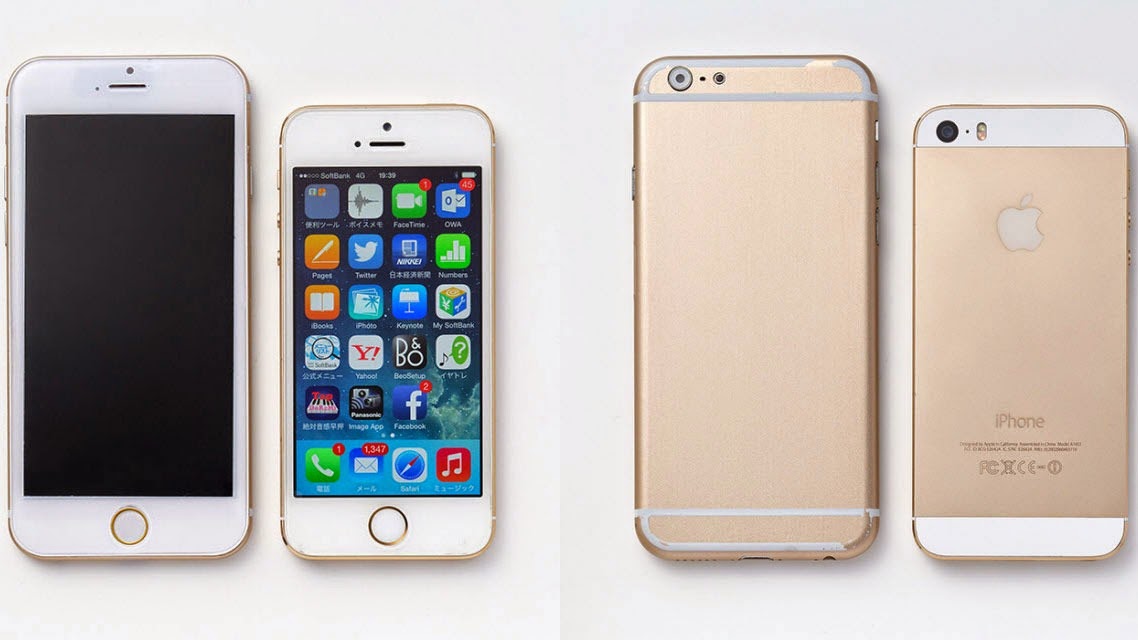
And now, the iPhone 6 series has just begun with the release of two variants; the iPhone 6 (4.7inch) and iPhone 6 Plus (5.5 inch).

Introduction to the iPhone 6 Series

Look And Feel

With the much wider 4.7inch size, the Apple iPhone 6 feels good at grasp and as for those who prefer more wider screen, the Apple iPhone 6 plus with the 5.5inch size is an option.

Once again, the slicky designs of the iPhones is diplayed in the iPhone 6. With the rounded edges brased with glasses, all contained in fine water-like metal gives the iPhone 6 its compact feel.

Camera And Video

As expected, face detection as well as smile and blink detection are built in the new iPhone 6 though, it might not have the pixel boost expected by fans; it's 8-megepixel iSight camera has imaging chip that is capable of handling noise better. Also, the HDR is now automatically applied.

Apple Pay And NFC

Having resisted the NFC, Near-Field Communication for many years, the iPhone 6 and iPhone 6plus do not only feature the short-range communication protocol but also, Apple Pay, a mobile payment system is built around it to complement the NFC.

The Apple Pay system built in the iPhone 6 and iPhone 6plus is currently (as at the released time), usable only by the US residents.

Availability

As gathered from the CNet Reviews, the iPhone 6 and the iPhone 6 plus will be lunched in ten countries in September 19, with pre-orders beginning Semptember 12.

The ten countries include: the US, the UK, Australia, Canada, France, Germany, Hong Kong, Japan, Puerto Rico and Singapore.

Pricing

As for the pricing, nothing conclusive could be written here as no precise amount could be given.

However,it is noted that in the UK, an Unlocked iPhone 6 (16GB) would be sold for £539, £619 64GB model and £699 for the 128GB models.

Colours
The iPhone 6 and iPhone 6 plus comes in three different vibrant colours: Gold, Silver and Space grey.

For any comments or questions over this article please, use the comment box bellow or contact us Via This Link. And if your questions is not about this article and needs our help over something related, Find Us on Facebook. Got any other info you want us discuss? Share it with us using the comment box or contact us!